Windows Forensics using Hayabusa
Windows Forensics using Hayabusa
Hayabusa

If you're doing Windows forensics or incident response related-CTF challenges, you've probably heard about Hayabusa, that handy open-source tool that makes digging through Windows event logs actually bearable. It's like having a security analyst buddy who never sleeps, constantly sifting through logs looking for suspicious stuff.
It's free and open source, so you can grab it from their GitHub and start using it today: Yamato-Security/hayabusa
Here are the commands I find useful - the ones that actually save me time when I'm knee-deep in event logs:
Simple check
hayabusa log-metrics -f "filename".evtx
Provides basic file metadata and event statistics - perfect for initial assessment.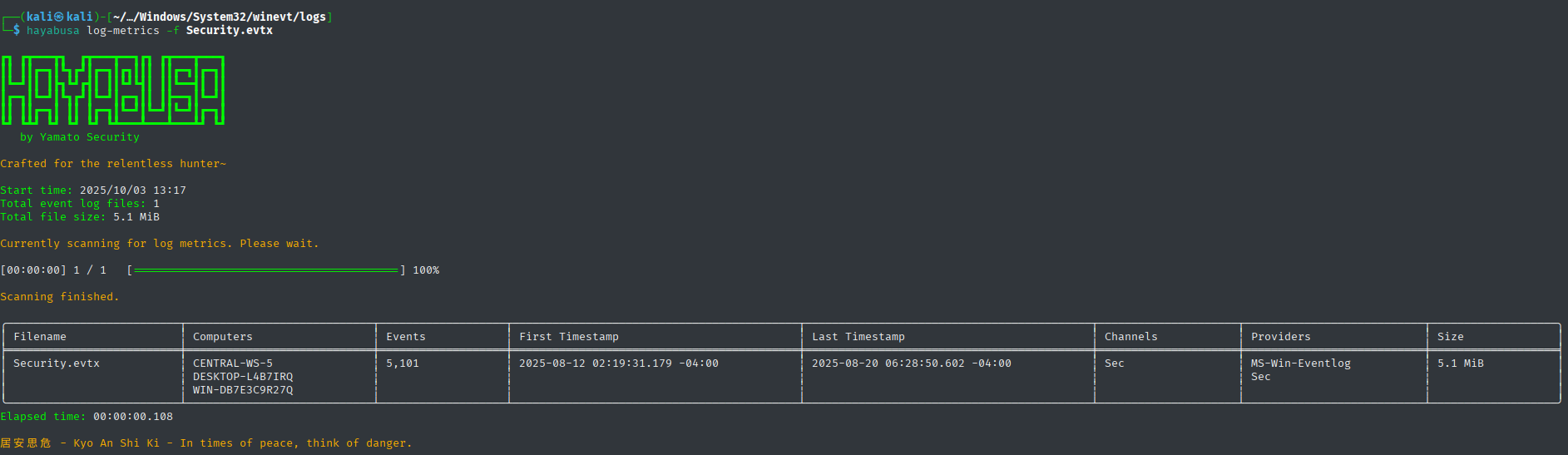
Event ID analysis
hayabusa eid-metrics -f "filename".evtx
Shows the most common Event IDs and their counts - great for identifying normal vs. abnormal activity patterns.
Basic timeline creation
hayabusa csv-timeline -f "filename".evtx -o timeline.csv
Creates a basic forensic timeline in CSV format that's easy to open in Excel or other analysis tools.
Logon activity summary
hayabusa logon-summary -f "filename".evtx
Provides an overview of successful and failed logons - essential for detecting brute force attacks or unauthorized access.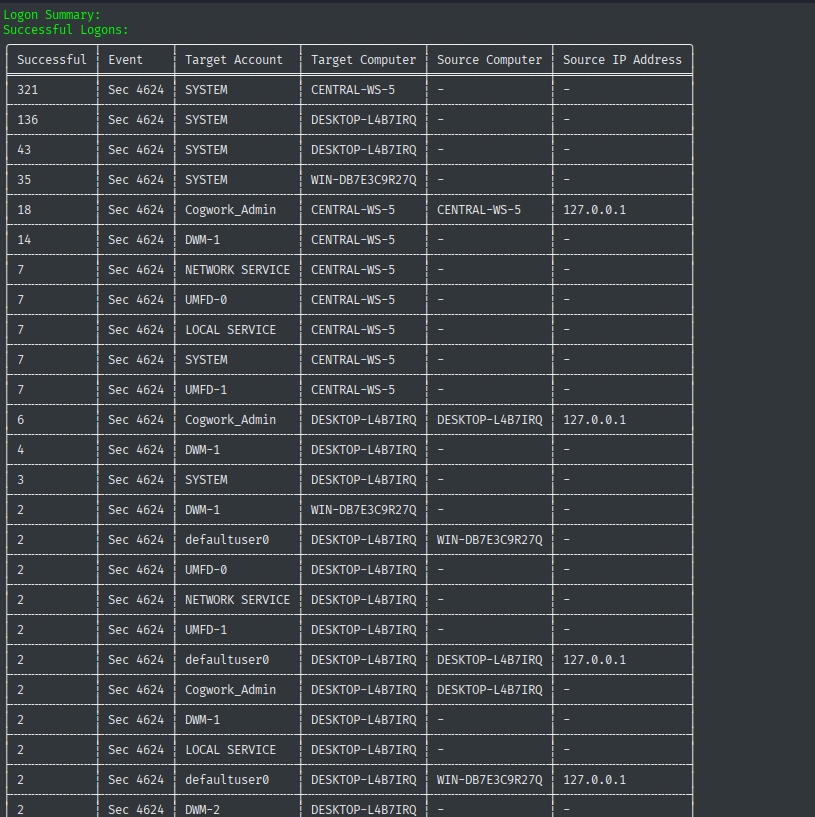
Search for specific keywords
hayabusa search -f "filename".evtx -k "mimikatz"
Searches for specific threat indicators or suspicious tools in the event logs.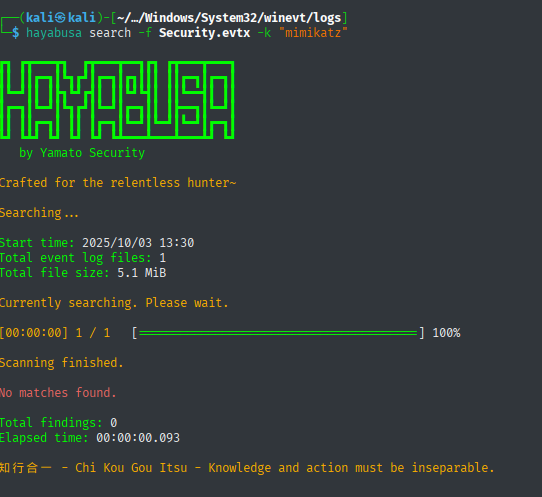
Quick minimal analysis
hayabusa csv-timeline -f "filename".evtx -p minimal -o quick_scan.csv
Perfect for rapid assessments when you need quick results without noise.Identify critical systems
hayabusa config-critical-systems -f "filename".evtx
Automatically identifies domain controllers, file servers, and other critical infrastructure.Practical Workflow Tips
- Start with metrics: Always begin with
log-metricsandeid-metricsto understand your data - Use profiles wisely: Choose
minimalfor quick scans,detailedfor comprehensive analysis - Filter by level: Use
-l high,criticalto reduce noise in large datasets - Export to CSV: Always save your results for further analysis in spreadsheet tools
- Combine with other tools: Use Hayabusa outputs as input for timeline analysis in other forensic tools, for example Zimmermann Tools
Remember: Hayabusa is particularly powerful for detecting lateral movement, persistence mechanisms, and privilege escalation techniques commonly used by attackers.
:)
All rights reserved. Any use of my content is strictly prohibited!